
Departments
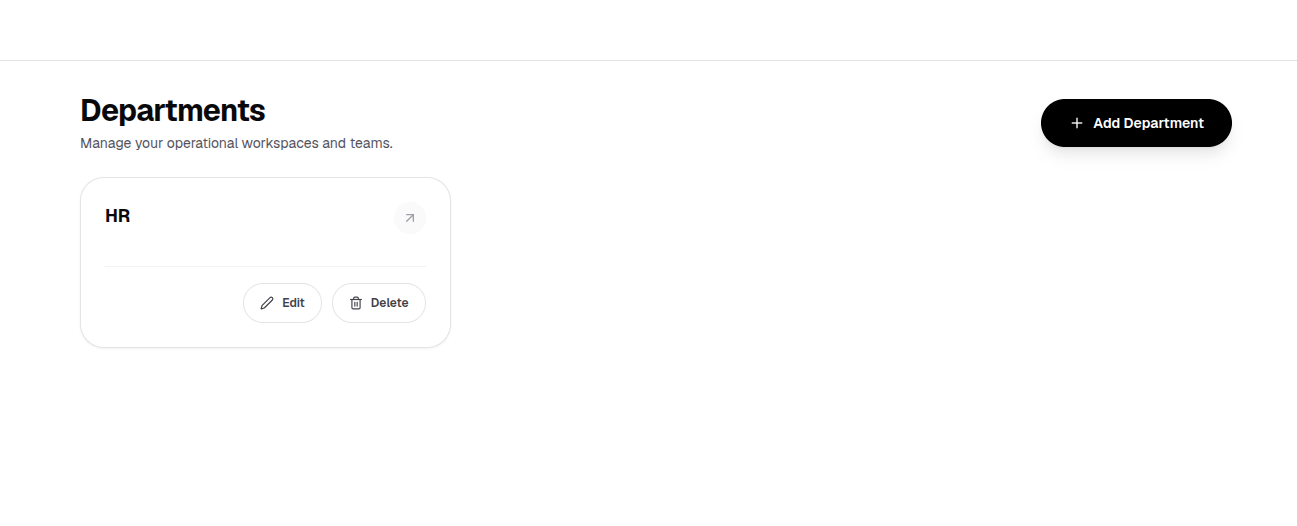
Departments allow you to organize workspaces for teams like HR, Legal, Finance, and Operations within your organization.
How to Create a Department
Click "+ Add Department"
Click the black button in the top right corner of the Departments view.
Enter Name & Save
Type your department name (e.g., HR, Legal, Finance) and save.
Workflows
Workflows allow you to create a series of automated steps to perform complex operational tasks.
How to Create a Workflow
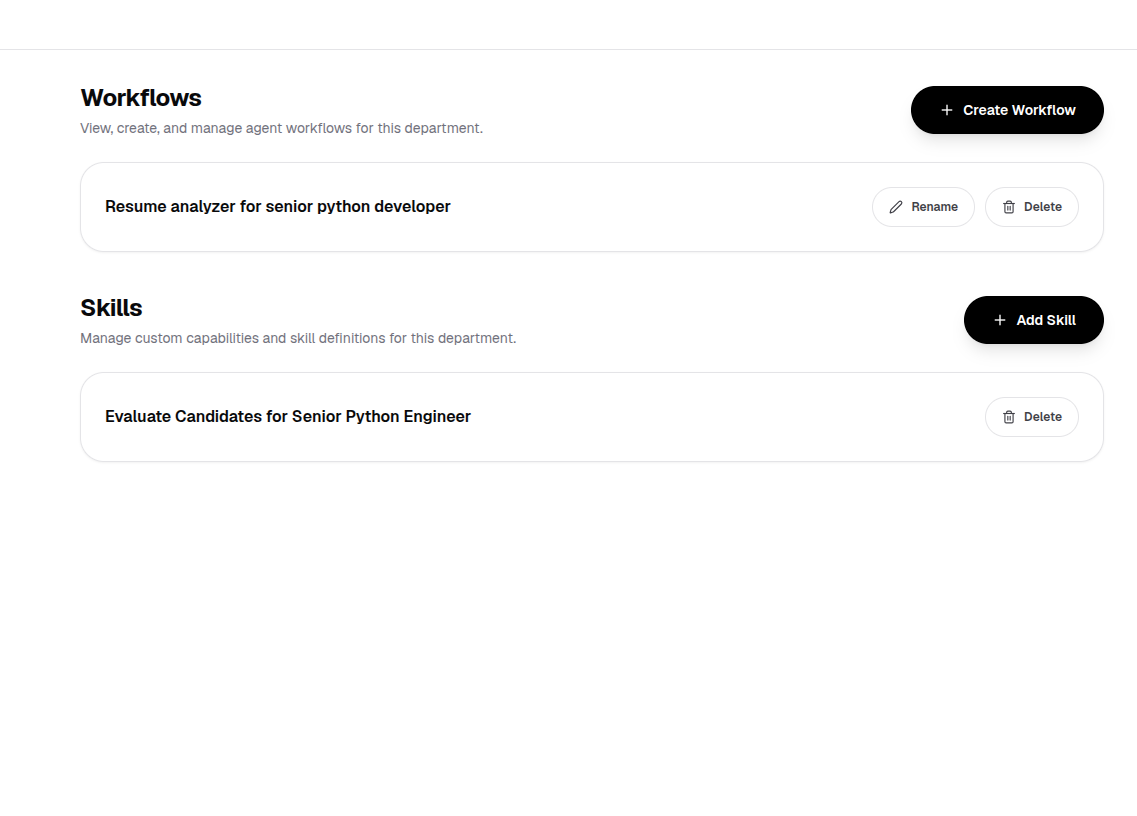
Click "+ Create Workflow"
Click the black "+ Create Workflow" button in the Workflows section.
Name Your Workflow
Provide a clear name (e.g., Resume analyzer for senior python developer).
Save & Build Steps
Save your workflow to start defining and chaining execution steps for your agents.
Nodes & Inspector
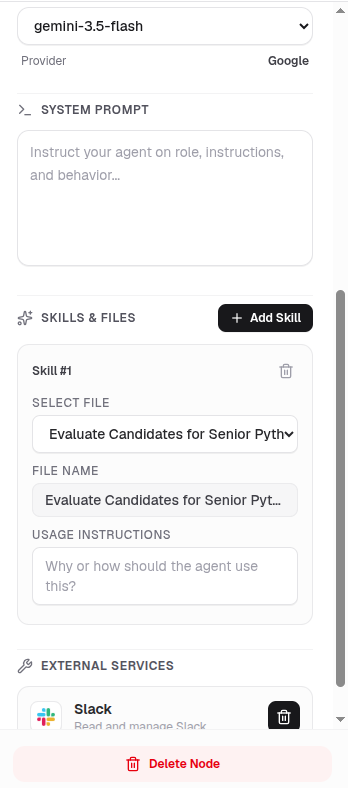
Nodes are the building blocks of your workflow visual canvas. Select any canvas node to customize its execution parameters in the right-side Inspector panel.
Agent Node
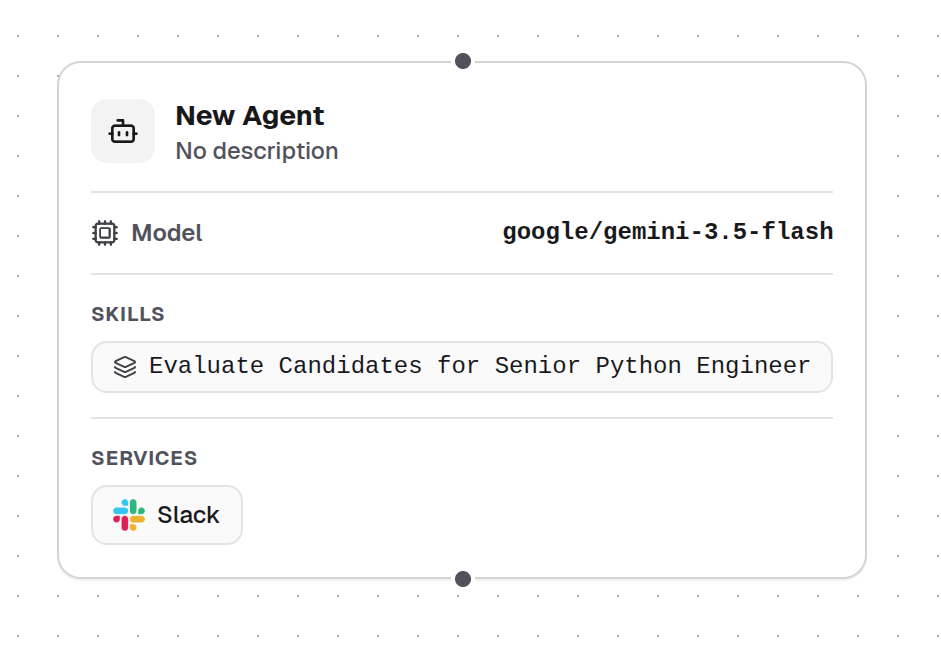
An AI-powered reasoning engine configured with models, system prompts, skills, and connected external services.
Configuration Steps
Select AI Model & Provider
Choose your LLM provider (e.g., Google) and model version (e.g., gemini-3.5-flash).
Define System Prompt
Instruct the agent on its core persona, role responsibilities, constraints, and execution behavior.
Attach Skills & External Services
Assign specific files/documents as agent skills and link external integrations like Slack for tools execution.
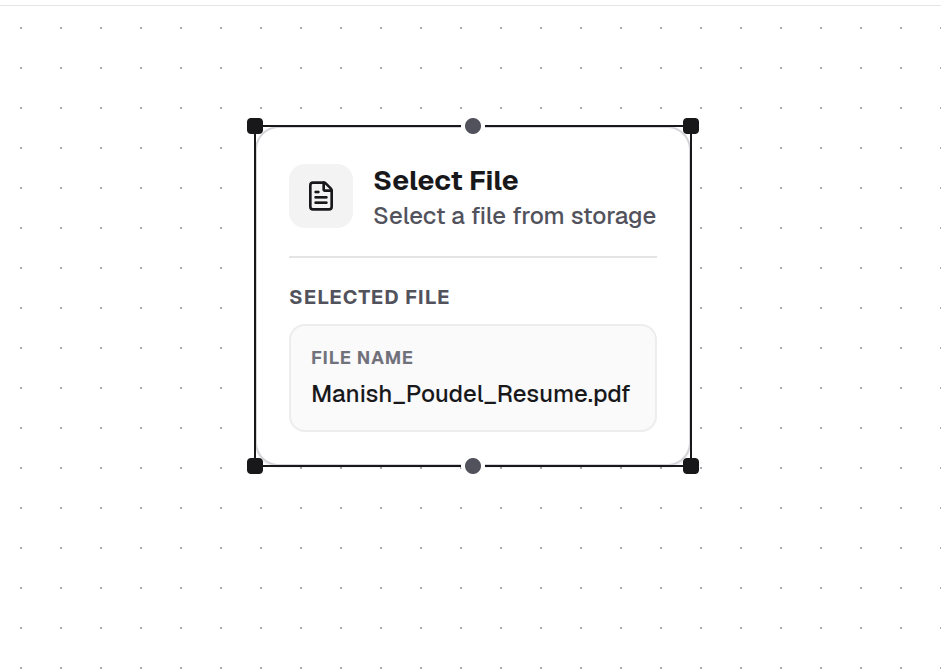
Select File Node
Pins a specific static file from your storage to supply directly into downstream workflow steps or agent skills.
Configuration Steps
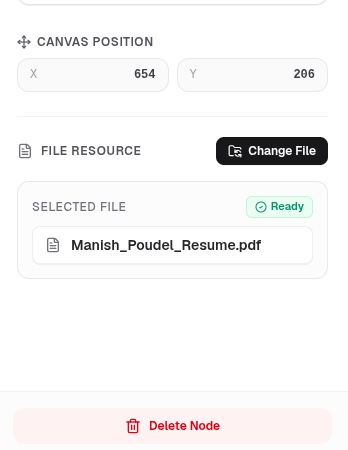
Choose File Resource
Click 'Change File' in the inspector panel to browse and select a file from your storage.
Verify File Status
Ensure the inspector badge displays 'Ready' alongside your chosen file name.
Connect to Workflow Nodes
Pass the selected file output into subsequent agent or action nodes.
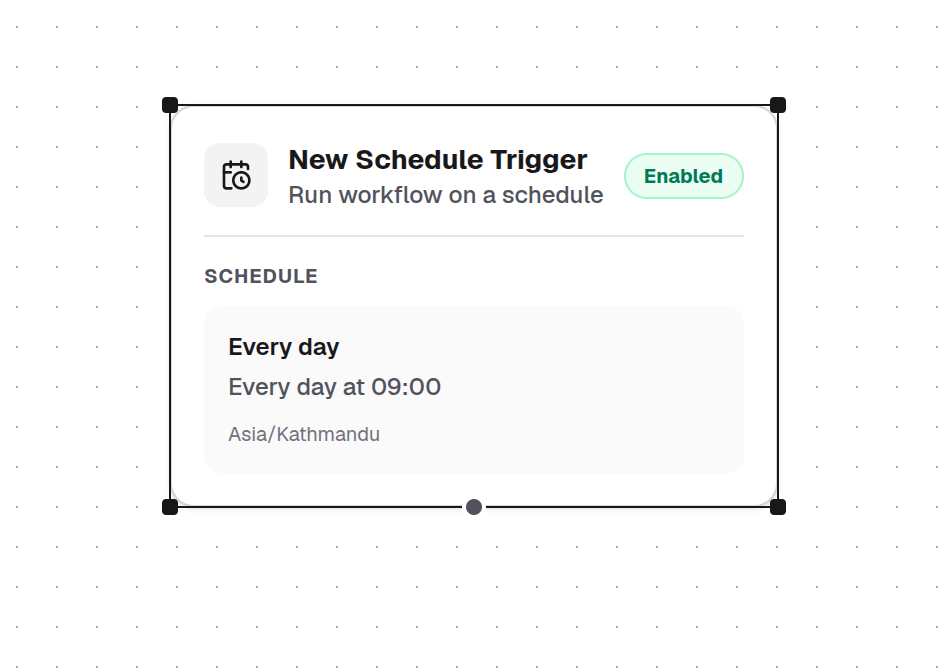
Schedule Trigger Node
Automates workflow execution on fixed time intervals or repeating CRON-like schedules.
Configuration Steps
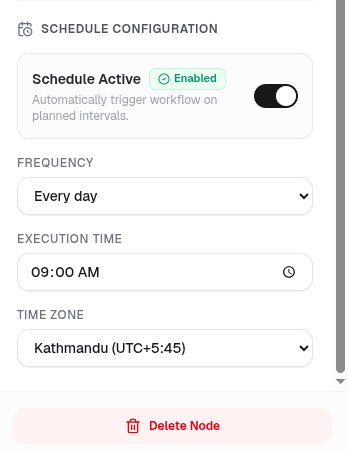
Enable Schedule Active
Toggle the schedule switch to activate automatic execution for the workflow.
Configure Frequency & Execution Time
Set the recurrence interval (e.g., Every day) and target launch time (e.g., 09:00 AM).
Set Time Zone
Specify the local time zone (e.g., Kathmandu UTC+5:45) to maintain accurate execution times.
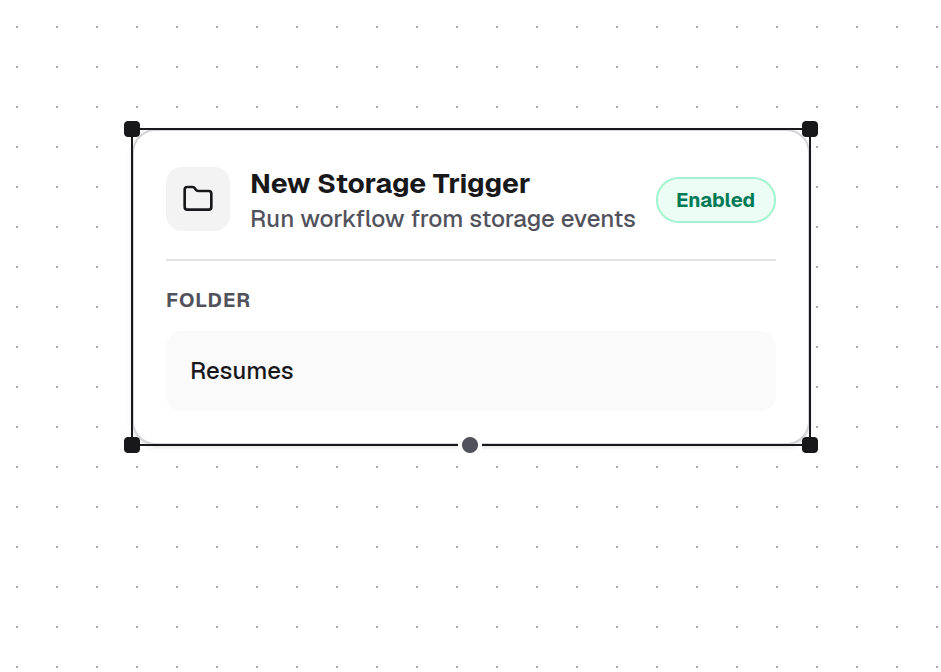
Storage Trigger Node
Event-driven trigger that initiates the workflow whenever files are added or modified in a watched storage folder.
Configuration Steps
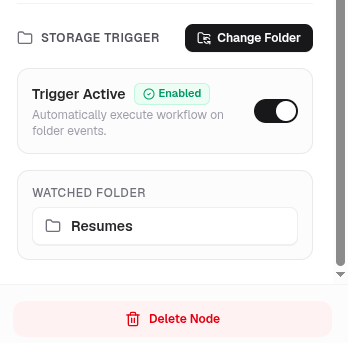
Toggle Trigger State
Enable the toggle in the inspector to listen for incoming storage events.
Select Watched Folder
Click 'Change Folder' to target a folder (e.g., Resumes) that will trigger execution upon file changes.
Stream Payload Data
Newly uploaded file objects will automatically pass down the pipeline as node output.
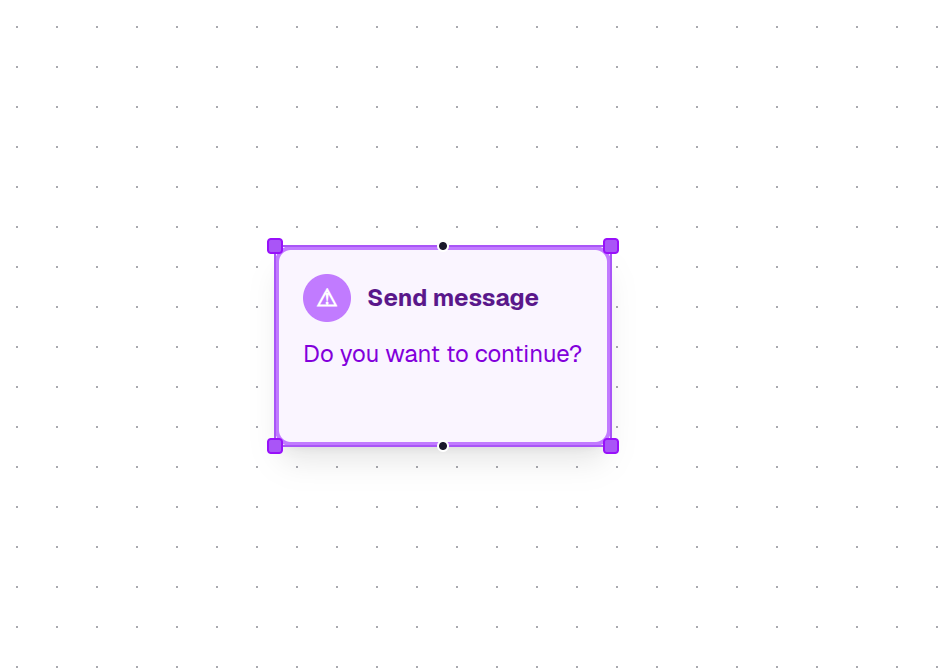
Approval Node
Implements human-in-the-loop control, pausing workflow execution until an authorized user reviews and approves action.
Configuration Steps
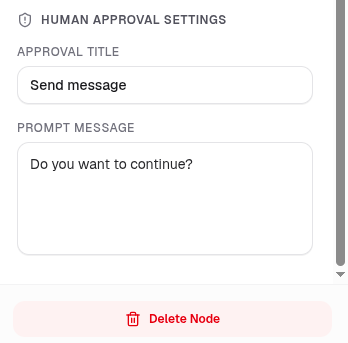
Set Approval Title
Define a clear action headline (e.g., 'Send message') for human review.
Configure Prompt Message
Draft a contextual prompt question (e.g., 'Do you want to continue?') displayed to the operator.
Manage Decision Flow
The workflow halts at this checkpoint until a human explicit approval signal is received.
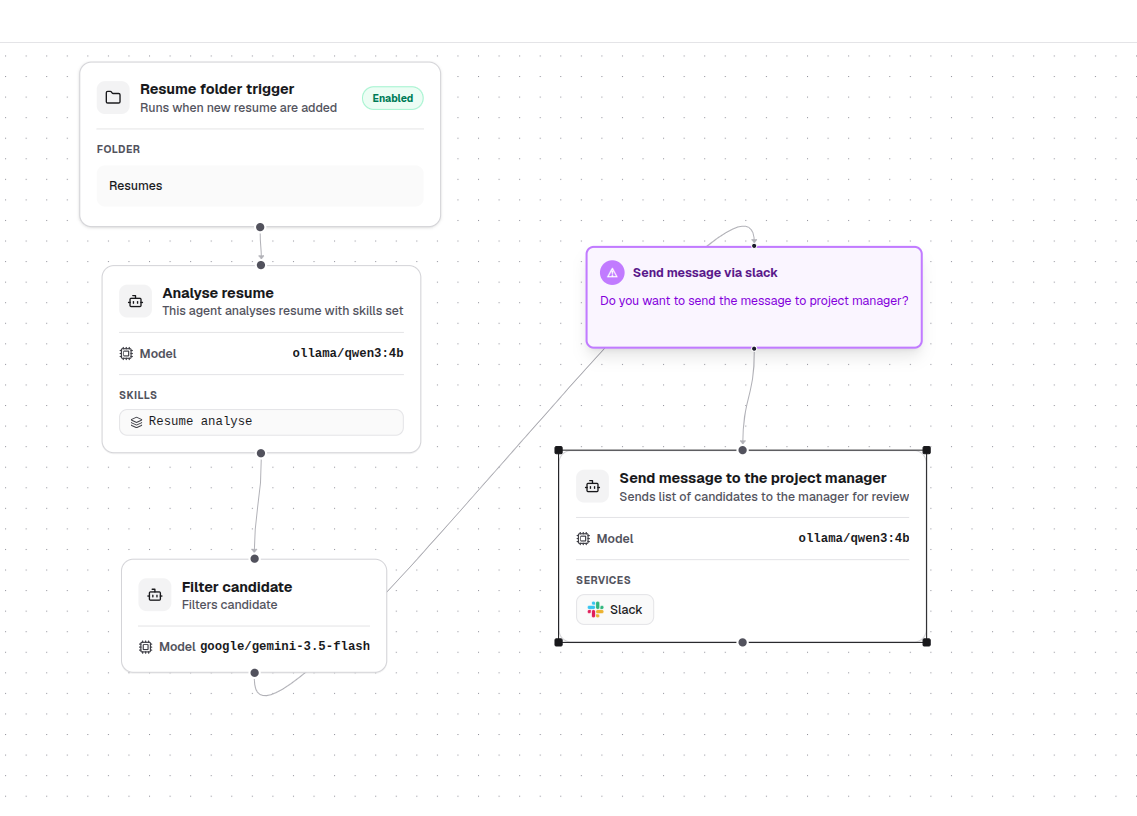
End-to-End Sample Workflow: Automated Resume Screening & Slack Alert
This workflow automates initial candidate evaluation when new resumes arrive. It parses documents, filters qualifications, formats a shortlist, and requires explicit human approval before messaging project leads via Slack.
What We Are Accomplishing
- Zero-latency intake: Instantly process resumes as soon as they hit storage.
- Multi-model AI reasoning: Multi-tier parsing with local Ollama models and cloud Gemini models.
- Human-in-the-loop safety: Prevent accidental notifications through explicit review checkpoints.
- Automated communication: Dispatch candidate summaries directly into Slack channels.
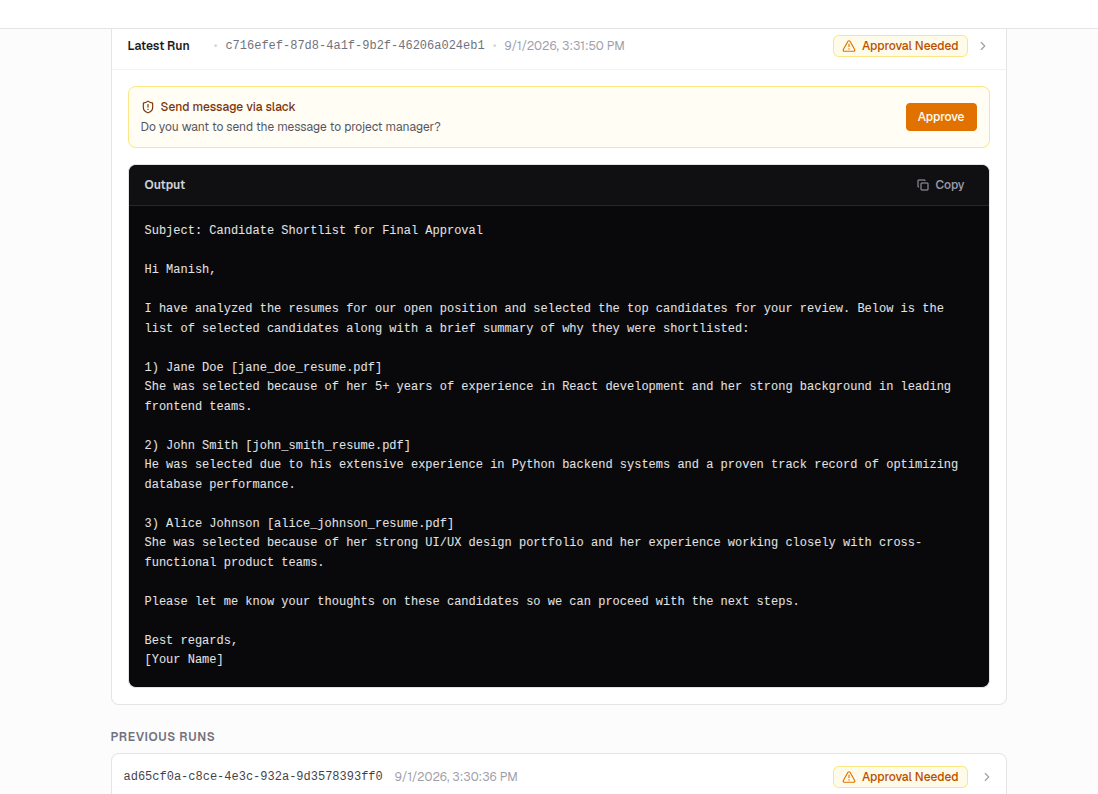
Workflow Architecture & Execution Output
How Each Step Was Configured
Storage Trigger (Resume Folder Trigger)
- Monitors the designated 'Resumes' storage folder for newly uploaded applicant documents.
- Automatically fires the workflow whenever a candidate submits or uploads a file.
Analyze Resume (Agent Node)
- Uses local LLM model 'ollama/qwen3:4b' to parse document content.
- Executes attached skill 'Resume analyse' to extract structured experience, skills, and background metrics.
Filter Candidate (Agent Node)
- Uses 'google/gemini-3.5-flash' to evaluate structured candidate profiles against role requirements.
- Generates a refined shortlist featuring top matching candidates and core qualification summaries.
Send message via slack (Approval Node)
- Pauses execution with prompt: 'Do you want to send the message to project manager?'
- Presents formatted candidate list to human operator for review before taking external action.
Send message to the project manager (Agent Node)
- Powered by 'ollama/qwen3:4b' with active 'Slack' service integration.
- Triggers upon manual approval signal to post candidate shortlist to manager Slack channel.
Skills
Skills define custom rules, criteria, and operational capabilities for your AI agents.
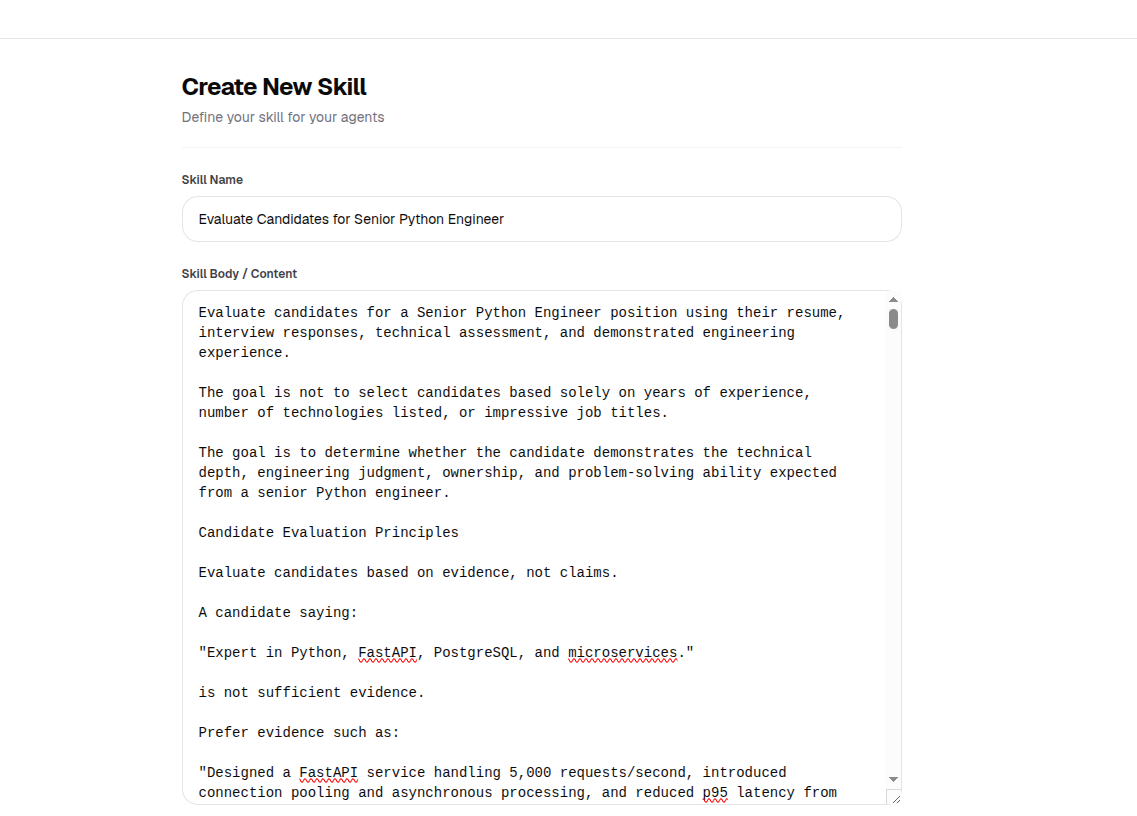
How to Create a Skill
Click "+ Add Skill"
Click the black "+ Add Skill" button under the Skills section.
Enter Skill Name
Provide a descriptive title for the capability (e.g., Evaluate Candidates for Senior Python Engineer).
Write Skill Body / Content
Define evaluation rules, instructions, or criteria for your agent to execute.
Save Skill
Save your custom skill to make it available for agent workflows.
Plugins
Connect external services to your organization and control tool access across workspaces securely.
1. Organization-Level Plugin Activation
Admins first connect external services at the organization level to define global scopes and grant overall integration access.
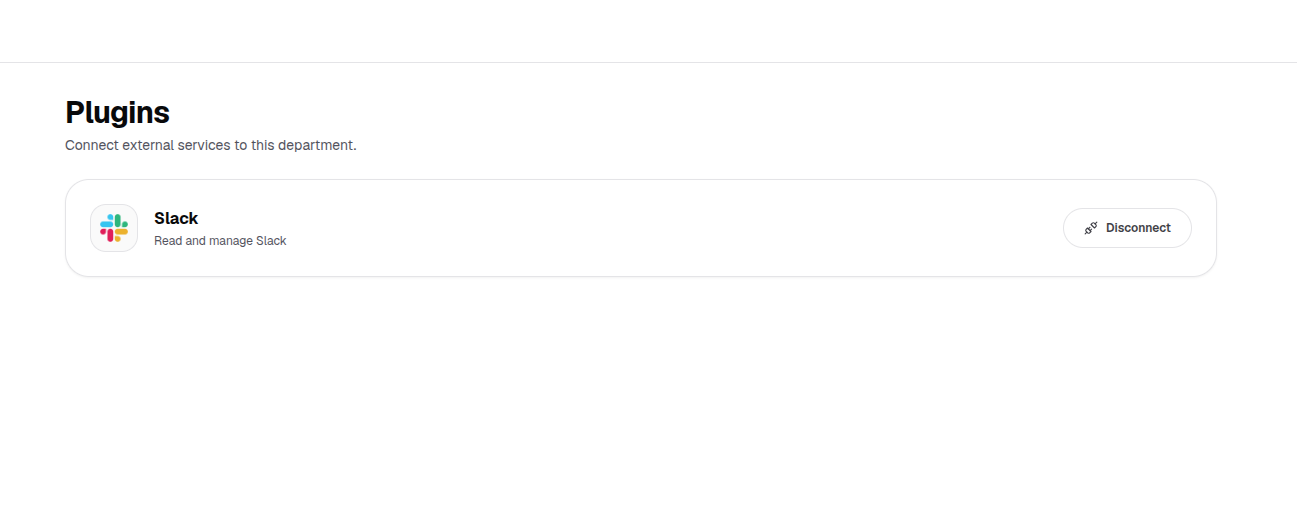
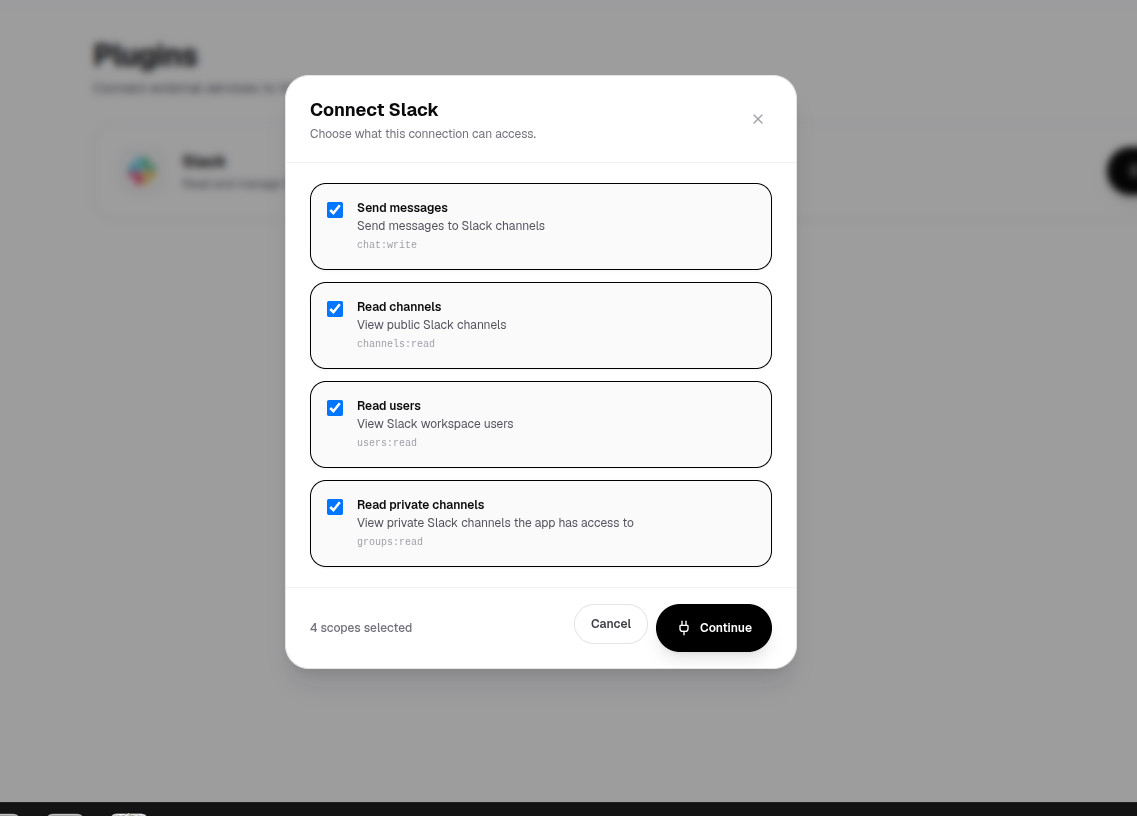
Steps for Organization Activation
Connect Plugin at Organization Level
Navigate to the Plugins section and click to connect the external service (e.g., Slack).
Configure App-Wide Scopes
Select the required OAuth/permission scopes that the integration will be authorized to use across the entire organization.
Authorize & Activate
Save and finalize the organization-level connection to activate the plugin.
2. Workspace-Level Access & Security Controls
Once connected globally, admins control which workspaces can access the service and select the specific tools exposed to workflows.
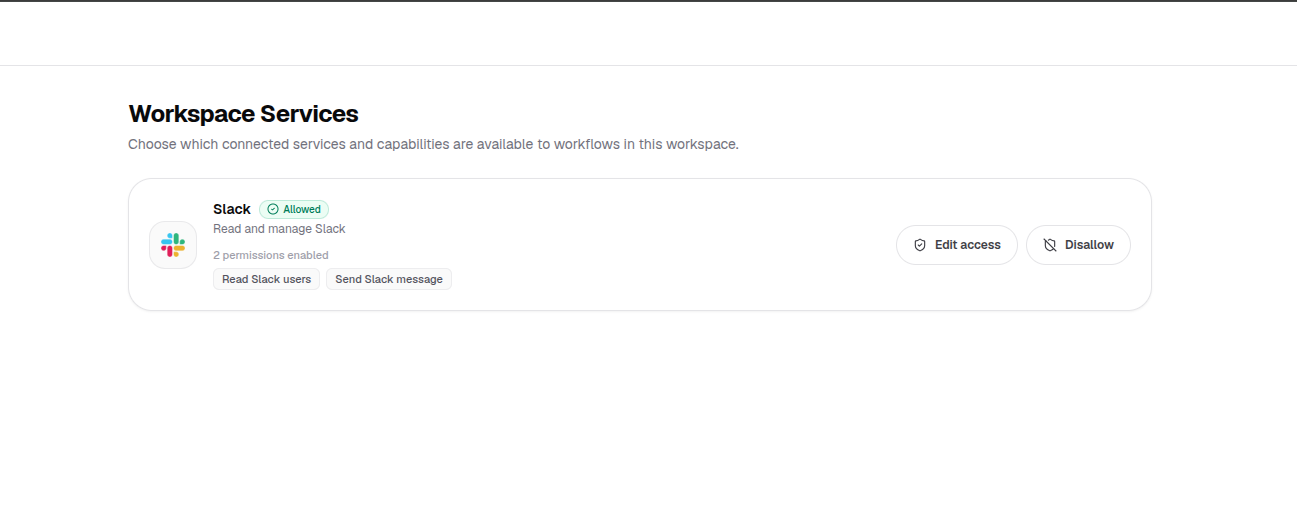
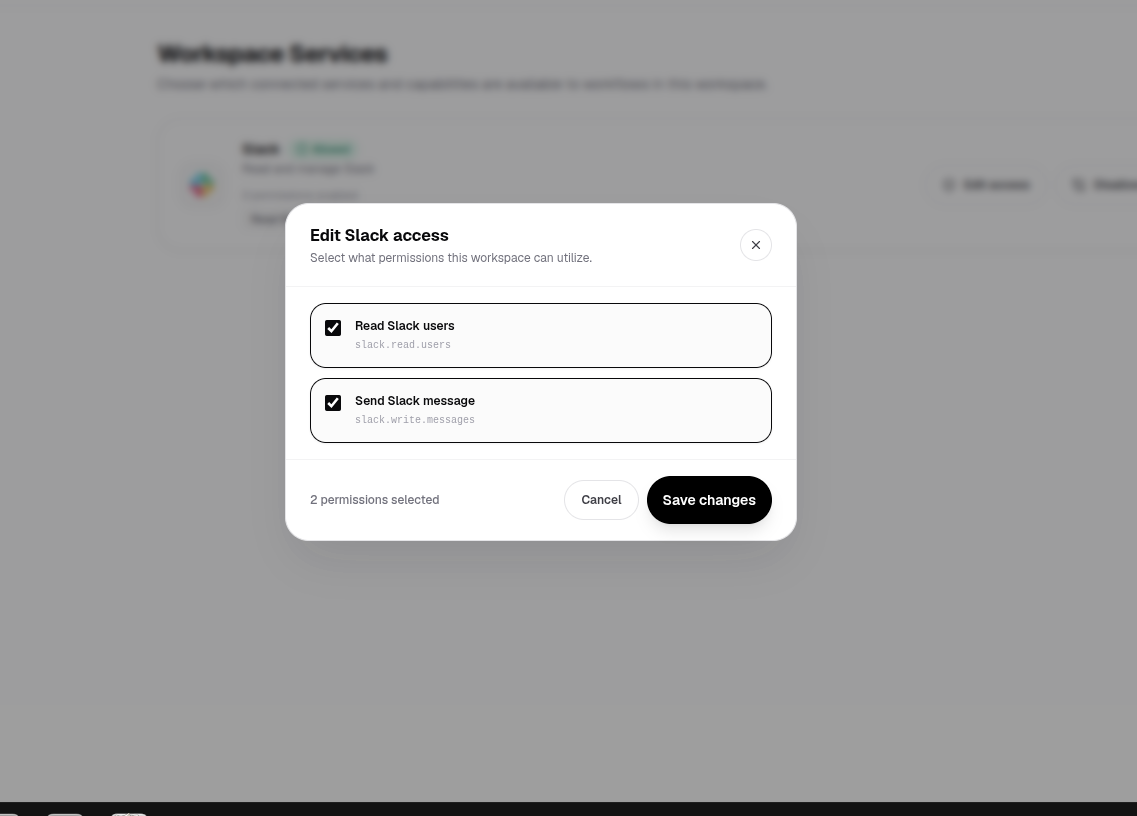
Steps for Workspace Level Controls
Select Workspace Services
Choose which individual workspaces are granted access to the connected organization plugin.
Restrict & Expose Specific Tools
For security, click 'Edit access' to select exactly which permissions/tools workflows in that workspace can utilize.
Save Permissions
Apply changes to enforce granular security policies for that specific workspace.
Storage
Storage allows you to organize files and documents into dedicated folders for each department.
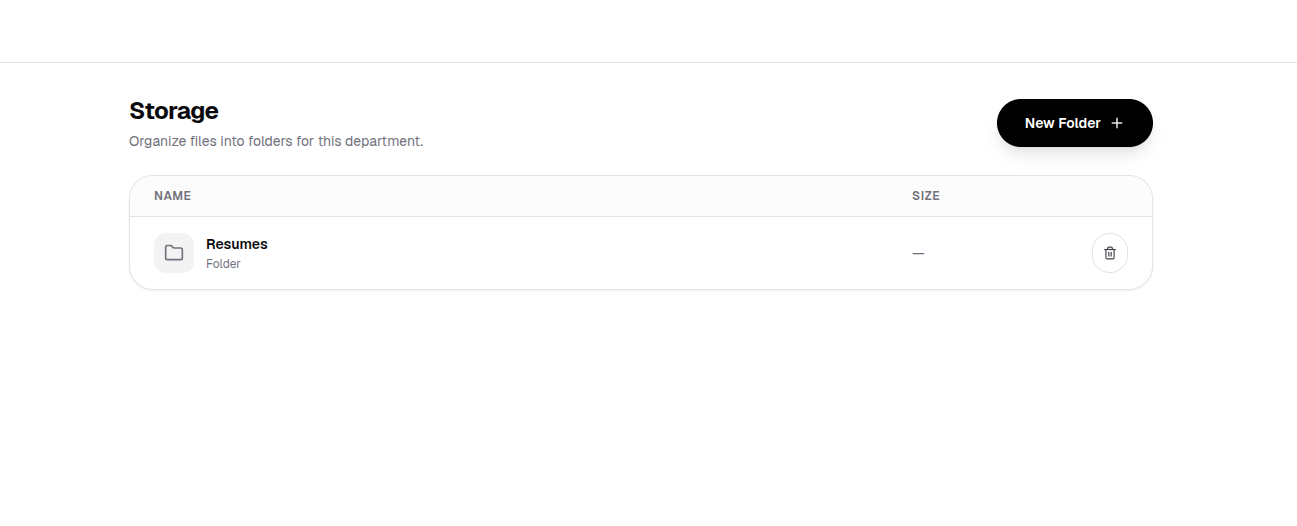
How to Create a Storage Folder
Click "New Folder +"
Click the black "New Folder +" button in the top right corner of the Storage section.
Name Your Folder
Provide a clear, descriptive name for the folder (e.g., Resumes, Contracts, Reports).
Organize & Upload Files
Open the folder to store, manage, and structure documents specific to your department.